

A multi-client content workflow helps teams manage briefs, deadlines, feedback, approvals, and publishing across multiple clients without creating operational chaos.
As client accounts grow, disconnected tools and inconsistent processes can lead to missed deadlines, duplicate work, unclear ownership, and approval bottlenecks.
Strong content workflow management gives every task a clear owner, status, deadline, and path from intake to publication.
With standardized processes and content workflow automation, agencies can manage more client content while maintaining consistency, quality, and control.
Why a multi-client workflow matters
A solo content process works fine until the second or third client starts asking for different briefs, different approvals, and different file rules.
Then the real problem shows up: the team is not just writing content anymore, it is juggling handoffs, version control, and access boundaries.
A multi-client workflow closes those gaps by giving every request the same path from intake to delivery.
Tools like Jira Service Management, Jira Software, Trello, Asana, Airtable, and Notion can all model that path with request types, queues, boards, custom fields, and approval stages.
It usually becomes worth it when the work stops fitting inside one inbox or one spreadsheet.
If drafts, assets, and approvals are living in a loose mix of Google Docs, Slack threads, and local folders, a consolidated workflow saves time and cuts mistakes fast.
The biggest gap it closes is confusion. A structured intake step captures scope, target audience, due date, brand assets, and approval needs before writing starts.
That keeps “done” consistent across clients instead of meaning something different for each account.
It also protects client boundaries. Google Workspace Shared drives give you cleaner separation than one giant folder tree, and that matters when teams are handling multiple brands at once.
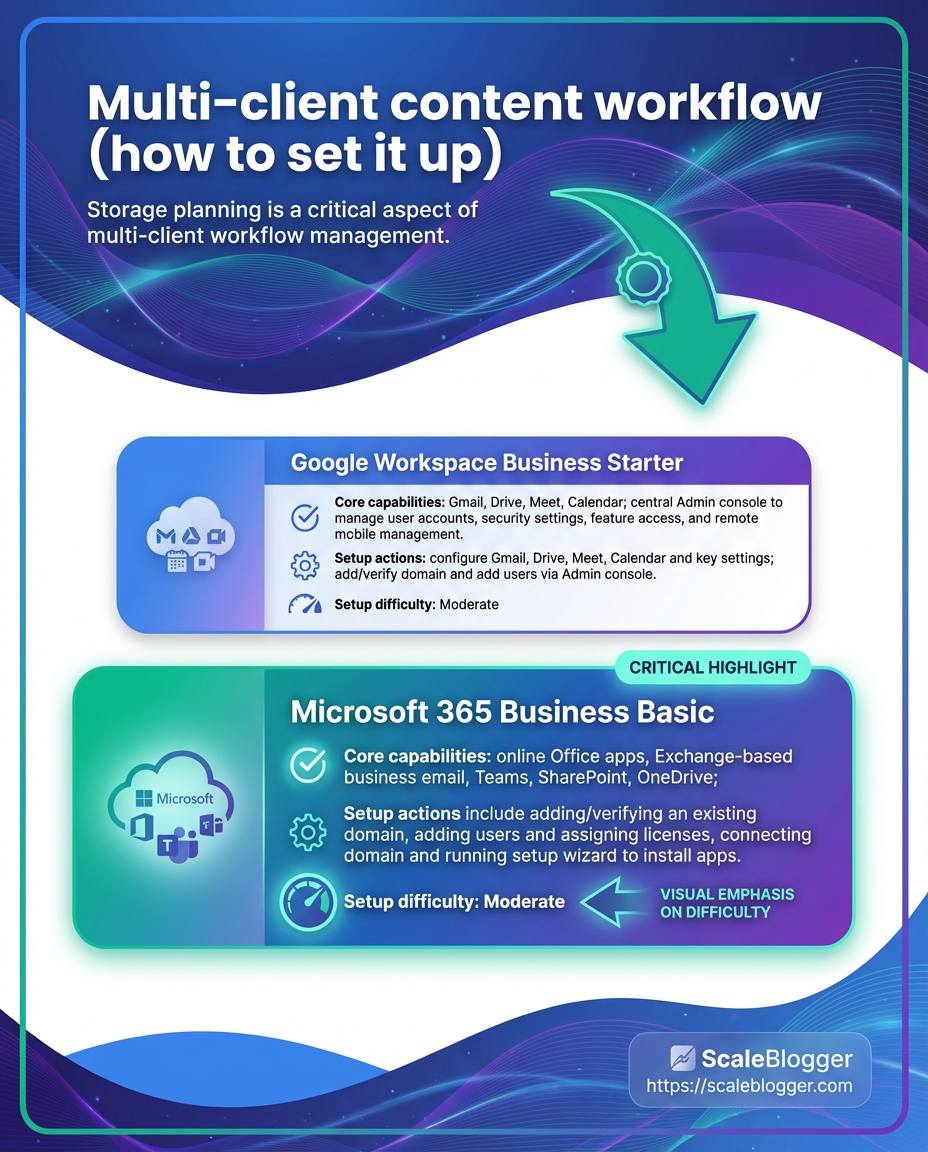
As of 2026, Google still gives 15 GB of free storage across Drive, Photos, and Gmail, while Dropbox Basic offers 2 GB, so storage limits alone can force a more deliberate setup.
- Structured intake: Every request starts with the same fields, so no one chases missing briefs later.
- Clear production stages: Writing, review, edits, QA, and publish become visible steps, not informal guesswork.
- Safer file handling: Shared drives, naming rules, and linked docs reduce cross-client mix-ups.
- Cleaner communication: Client-specific Slack channels keep feedback from bleeding across accounts.
- Less manual coordination: Zapier can connect intake forms to task creation and status updates without repetitive admin work.
The switch usually makes sense once new-client onboarding starts slowing the team down more than the work itself.
When that happens, a single workflow does not just save time; it makes quality repeatable and helps new clients ramp faster because the process already exists.
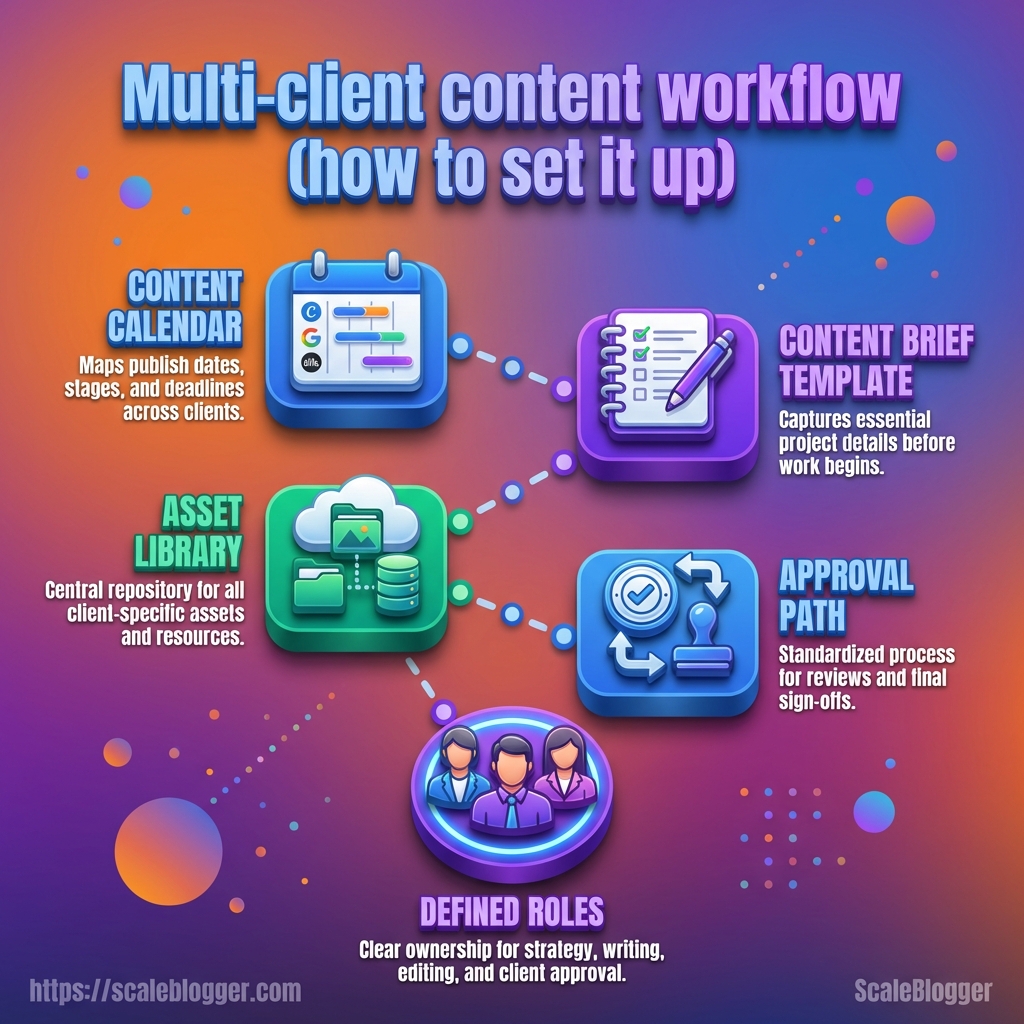
Core components of a scalable workflow
A scalable workflow usually fails at the same point: the team knows the work, but the system does not.
The fix is not another status column; it is four pieces that stay connected — the calendar, the brief, the asset library, and the approval gate.
Each part has a job.
The calendar decides timing, the brief locks scope, the library keeps files clean, and the approval step makes sure nothing ships early.
A practical setup often pairs Jira Software or Asana for task flow, Google Workspace Shared drives for storage, and Slack for client-scoped updates.
Zapier can connect intake forms to task creation, while metadata such as client name, due date, and version number follows the item from one system to the next.
Core workflow components
| Component | Primary function | Key integrations | Who owns it | Implementation complexity |
|---|---|---|---|---|
| Content calendar | Sets publish dates, priorities, and stage status | Asana, Jira Software, Trello, Slack | Editorial lead | Medium |
| Content brief template | Captures scope, audience, angle, keywords, and approvals needed | Notion, Airtable, Google Docs, Zapier | Account or content strategist | Low |
| Asset/media library | Stores images, exports, brand files, and versioned drafts | Google Workspace Shared drives, Slack, CMS tools | Operations or creative lead | Medium |
| Approval/feedback tool | Collects comments and locks final sign-off | Google Docs, Jira Software, Asana | Client lead or editor | Medium |
| Publishing connector | Pushes approved content into WordPress, Ghost, or similar CMS | Zapier, CMS APIs, task tool | Publishing owner | High |
The table makes the hidden work obvious.
The calendar and brief handle planning, while the library and approval path protect quality and reduce rework.
Data should move in one direction most of the time: intake to brief, brief to draft, draft to review, review to publish, and publish back into the calendar with status and performance notes.
That last loop matters, because the next assignment is easier when the system already knows what happened before.
When the workflow is clean, people stop asking where the file is and start asking what the content should do next.
That is the real sign the system can grow.
Step-by-step setup: from pilot to full roll-out
A clean roll-out starts with restraint.
The fastest way to break a new workflow is to launch it across every client at once and hope the rough edges stay hidden.
A better move is to treat setup like a controlled build: define the rules first, test them with a small set of clients, then expand only after the process survives real pressure.
Phase 0: define objectives, KPIs, and client segmentation
Before any tool gets touched, the team needs a sharp picture of success.
That usually means deciding whether the goal is faster turnaround, fewer revision loops, cleaner handoffs, or all three.
Client segmentation matters just as much.
A high-volume SEO client, a brand client with heavy approvals, and a one-off launch project should not sit in the same workflow lane.
Phase 1: run a short pilot with 1–2 clients
A pilot works best when it is small enough to watch closely and messy enough to reveal the cracks.
One fast-moving client and one approval-heavy client usually expose different failure points without turning the rollout into a circus.
The visual shows the handoff from intake to draft, then review, then publish or delivery.
It also makes it easy to spot where work stalls, which is usually the real reason a process feels slow.
Phase 2: automate repetitive tasks and standardize briefs
Once the pilot is stable, remove the boring steps first.
Intake routing, brief creation, due-date assignment, and reminder pings are the easiest wins, especially with tools like Scaleblogger sitting behind a structured workflow instead of driving it.
The other job here is consistency.
A master brief template should ask for the same fields every time, so writers do not have to guess what “good” looks like.
Phase 2 implementation checklist
| Task | Owner | Priority | Estimated time | Status |
|---|---|---|---|---|
| Create master brief template | Content operations lead | High | 2 hours | In progress |
| Set up calendar templates per client type | Editorial manager | High | 3 hours | Planned |
| Configure AI draft generation workflows | Automation specialist | High | 4 hours | Planned |
| Connect approval tool to calendar | Operations lead | Medium | 2 hours | Planned |
| Train team on new process | Team lead | High | 1.5 hours | Scheduled |
| Build intake form with required fields | Client success manager | High | 2 hours | Done |
| Map notification rules to Slack channels | Project coordinator | Medium | 1 hour | Planned |
| Standardize naming conventions | Content editor | Medium | 1 hour | Planned |
The checklist keeps the rollout from drifting into half-automation and half-manual chaos.
It also makes ownership visible, which is where most process gaps show up.
Phase 3: scale across clients and document the SOPs
Scaling gets easier when the exceptions are already written down.
Once the pilot rules hold, document them in a shared system such as Notion, then separate client assets in Google Workspace Shared drives so permissions stay tidy.
As of 2026, Google accounts still start with 15 GB of free storage across Drive, Photos, and Gmail, so file sprawl becomes a real issue fast.
That is usually the point where a naming rule, a folder map, and one clear SOP save more time than another round of meetings.
By the time the process is rolled out broadly, the team should not be improvising from memory.
The system should feel boring in the best possible way, because boring processes are the ones that survive growth.
Templates, AI prompts, and automation patterns
A reusable library beats one-off creativity.
When every request starts from a blank page, the team spends more time deciding how to work than doing the work.
The cleanest setup uses templates that match the job, not the client.
Think intake brief, outline, draft request, edit pass, publish checklist, and post-publish repurposing brief.
Versioning matters just as much.
Keep each template in a shared drive, Notion space, or Airtable base with a version tag in the name, then note what changed, why, and who approved it.
Templates worth keeping
- Intake brief: Capture topic, audience, due date, required assets, and approval path before writing starts.
- Outline template: Lock the angle, headings, sources, and desired length so drafts do not drift.
- Draft review sheet: Separate editorial notes, client notes, and factual checks so feedback stays readable.
- Publish checklist: Include title, meta description, links, images, CMS fields, and final approval.
- Repurposing brief: Define the social cutdowns, hooks, and platform formats after the article is done.
A good template library also respects separation.
Client files belong in distinct shared drives or folders, and naming should stay predictable, like ClientName-ProjectType-YYYYMMDD-Version.
Prompt patterns that repeat well
The best prompts are boring in a useful way.
They give the model a role, a task, constraints, and a clear output format.
That pattern works for almost every recurring content type, from briefs to first drafts to social snippets.
The visual shows a prompt, the first AI draft, and the human edit that tightens it up.
It is useful because the real win is not raw generation; it is reducing cleanup time without losing judgment.
For recurring prompts, keep the same structure and swap only the variables.
If a prompt works for one client brief, it should work for the next with minimal editing.
Automation patterns that save the most time
Automation is strongest when it handles handoffs, not thinking.
A request can move from intake form to task creation in Zapier, then into Asana, Trello, or Jira with the right assignee, due date, and status.
From there, the workflow can keep moving without drama.
- Scheduling: Move approved items into a publishing queue the moment they hit the right status.
- Repurposing: Trigger social drafts after publication, then send them for quick approval in Slack.
- Publishing: Auto-publish only when the final checklist is complete and the document link is attached.
- Notifications: Keep alerts client-scoped so one project never spills into another team’s channel.
This is where platforms like ScaleBlogger fit naturally, since the same content can move from draft to publish to social repurposing in one chain.
The real advantage is consistency.
Once the templates, prompts, and automations are stable, every new client feels less like a fresh build and more like a clean repeat.
Performance tracking and benchmarking across clients
One client may care about reach, another about leads, and a third about how fast drafts move.
That is where cross-client reporting gets tricky: the same dashboard can look great for one account and misleading for another.
The clean fix is to track each client against the metric that matches the business goal, then normalize those metrics so the comparison is fair.
A visibility-heavy blog should not be judged by the same conversion bar as a nurture-focused content program.
Normalized dashboard layout
| Metric | Normalization method | Target range | Alert threshold |
|---|---|---|---|
| Organic sessions | Per 1,000 published words | 80–150 sessions | Below 50 for 2 reporting cycles |
| CTR (search & social) | Clicks divided by impressions | 2%–6% | Below 1.5% |
| Average time on page | Per page type and traffic source | 1:30–3:00 minutes | Below 1:00 minute |
| Conversion rate (content-driven) | Conversions divided by content sessions | 1%–4% | Below 0.8% |
| Content production velocity | Items shipped per week per client | 4–12 pieces | Below agreed monthly baseline |
This kind of table works because it separates volume from quality.
A client with fewer sessions can still outperform if engagement and conversion stay strong.
Internal BI exports and GA4 data usually make this cleaner than trying to read everything inside a task tool alone.
Reading the numbers without getting fooled
A quiet week does not always mean weak performance.
It may just mean a campaign launched late, a seasonal dip hit traffic, or one client’s audience behaves differently from another’s.
Noise shows up fast when you compare raw totals.
Signal shows up when you compare like with like.
- Segment by client goal: Visibility clients live and die on impressions, clicks, and session growth.
- Separate by content type: Evergreen guides, case studies, and landing pages should never share one benchmark.
- Watch rate metrics first: CTR, time on page, and conversion rate reveal quality faster than raw traffic.
- Use rolling windows: Weekly spikes matter less than a 4-week or 12-week pattern.
- Flag outliers, then explain them: A single high performer often reflects timing, topic fit, or promotion, not a new baseline.
A practical setup in ScaleBlogger or a similar system is to keep the performance view tied to the publication record, not scattered across spreadsheets.
When the dashboard is normalized, client review stops turning into a numbers argument.
The conversation gets better, because everyone is looking at the same story.
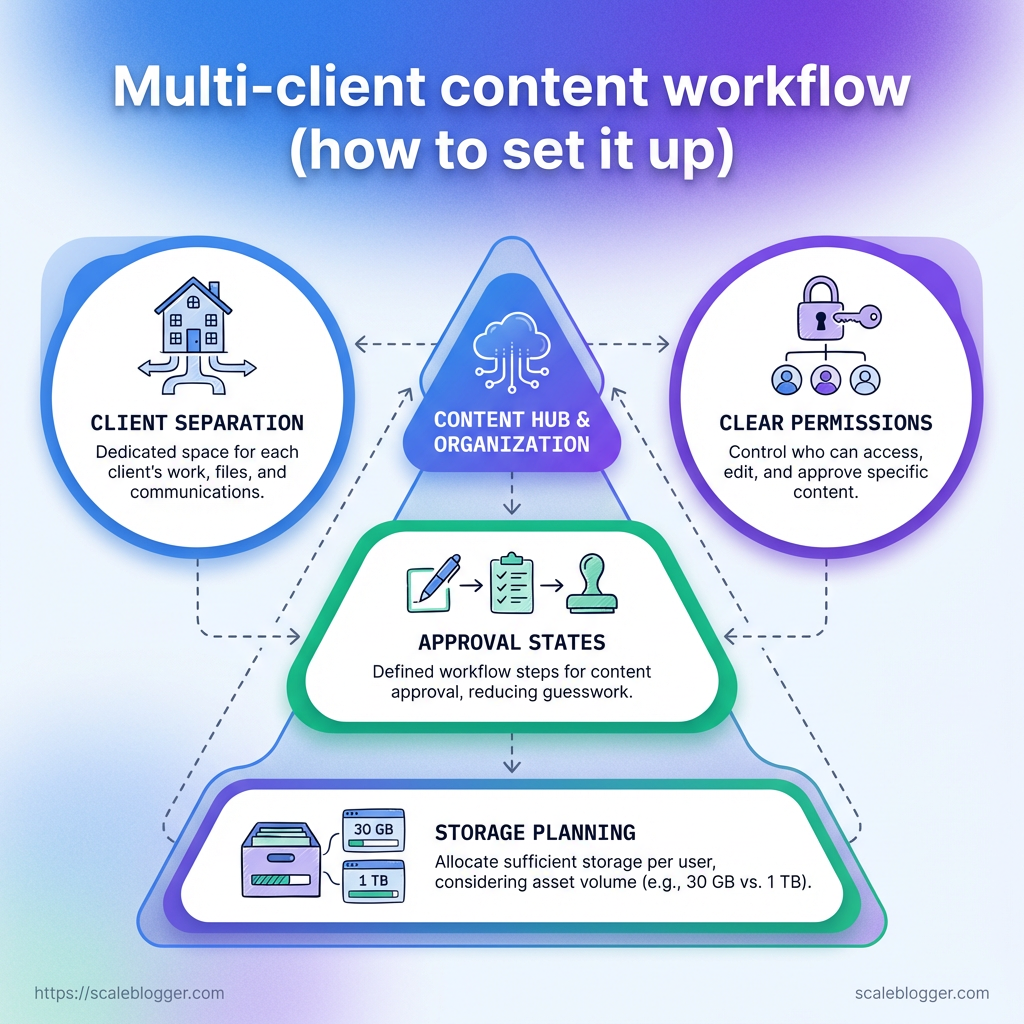
Governance, security, and client separation
The fastest way to damage trust is a simple access mistake.
Shared tools make it easy to move fast, but they also make it easy to expose one client’s draft to another.
Good governance keeps permissions boring, predictable, and documented.
Treat every client as its own boundary.
That usually means separate drives or spaces, client-scoped Slack channels, and task records that only show the people who need them.
In Google Workspace, Shared drives are a cleaner fit than one giant folder tree because access is controlled at the drive level, not by memory.
That matters when three people leave a project and two new people join the next week.
Access controls and permission models
Start with least privilege.
Writers should see the brief and draft, editors should see draft and QA notes, and only account leads should see the full picture.
Keep comments and notifications client-scoped, especially in Slack, so one project never bleeds into another.
That small habit prevents both confusion and accidental disclosure.
- Client-level spaces: Use separate Shared drives, Notion spaces, or Airtable bases for each account.
- Role-based access: Give writers, editors, and approvers different permissions.
- Named ownership: Assign one person to approve access changes and offboarding.
- Audit trails: Keep version history in Google Docs or your document system.
Data handling policies
The line between shared assets and client-only assets should be written down, not guessed.
Shared assets are reusable SOPs, templates, and generic checklists.
Client-only assets include briefs, source files, draft exports, and anything tied to brand, revenue, or unreleased campaigns.
As of 2026, free Google accounts still start with 15 GB across Drive, Photos, and Gmail, while Dropbox Basic offers 2 GB, so storage planning is part of governance, not housekeeping.
- Store briefs separately: Put live client work in dedicated drives or folders.
- Name files consistently: Use
ClientName-ProjectType-YYYYMMDD-Version.
- Set retention rules: Define how long drafts, exports, and approvals stay archived.
Contracts and SLAs that match the workflow
SLAs work best when they describe the handoff, not just the deadline.
Spell out intake response times, revision windows, approval delays, and what counts as a client-caused pause.
That protects the team when one review round turns into five.
It also gives clients a clear picture of where their responsibility starts and ends.
- Review windows: Set a fixed number of business days for feedback.
- Escalation path: Define who gets pinged when approvals stall.
- Delivery format: State where final files and links are delivered.
- Scope boundaries: Separate routine edits from new requests.
Clean governance feels unglamorous until the first mistake.
Then it becomes the difference between a tidy operation and a client mess that takes days to unwind.
Common pitfalls and troubleshooting FAQ
Most workflow breakdowns are not caused by the template itself.
They happen when a neat system meets messy client reality, and nobody has decided what counts as an exception.
The fix is usually boring, which is good news.
Templates work best when they are narrow, editable, and attached to a clear intake step.
A request in a tool like Jira Service Management or Asana should capture the non-negotiables first: audience, deadline, assets, and approval path.
Template adoption often fails for a simple reason: people are asked to follow a form that feels slower than their old habit.
When that happens, the template needs fewer fields, not more enthusiasm.
Why do templates fail adoption?
Templates die when they try to solve every case at once.
If a client has to wrestle with ten fields for a five-minute request, they will bypass the system and send a message instead.
The repair is to split the template into two parts.
Keep a short intake form for every request, then attach a longer brief only when the work is complex or high risk.
How do you handle client-specific exceptions?
Treat exceptions like a rule with a name, not a one-off favor.
If a client always wants legal review, multilingual copy, or a special approval step, bake that into their workflow branch.
The danger is ad hoc changes that live only in someone’s head.
A clean way to manage this is to keep the standard path intact, then add client-level overrides in the task record or brief template.
What if AI drafts are weak for a niche client?
That usually means the model is guessing too much and learning too little from the brief.
Niche work needs sharper inputs, better examples, and a narrower scope.
This walkthrough is most useful when a draft sounds generic, but the client expects industry language.
It shows how to tighten prompts so the output matches a specific audience without losing speed.
What about turnaround times, edits, and ownership?
Turnaround times get messy when “done” means different things to different people.
A draft is not finished when it is written; it is finished when the expected review steps are clear.
Ownership should stay visible at every stage.
One person owns the task, one source of truth holds the draft, and one named reviewer signs off before delivery.
The easiest systems are the ones people stop arguing with.
Once the exceptions, edits, and AI gaps are documented, the workflow feels less fragile and a lot less theatrical.
Make the Workflow Hard to Break
The real advantage is not speed by itself.
It is control.
When every brief, draft, approval, and publish step has a single owner and a single path, client work stops bleeding into itself.
That is what keeps a draft out of the wrong folder and out of the wrong approval queue.
The fix was never more memory or more reminders.
It was cleaner routing, stronger templates, and checkpoints that made mistakes hard to hide.
The best move today is simple: map one active client’s journey from idea to publish and mark every handoff where things can drift.
Tighten the weakest step before adding more volume, or use tools like ScaleBlogger if automation should carry more of the routing and publishing load.
The teams that hold up under pressure are usually the ones that make the next mistake impossible.
