

The best tools to schedule LinkedIn posts can turn a busy editorial calendar into a consistent publishing workflow without constant copying, pasting, and last-minute posting.
For teams using Notion, Trello, Asana, or other editorial calendar tools, the challenge is often moving approved content smoothly from planning to LinkedIn.
The right LinkedIn scheduling tools can automate publishing, manage approvals, handle media, maintain campaign data, and track performance from one workflow.
This guide compares popular LinkedIn schedulers and their features to help you choose the best option for your team, budget, and publishing needs.
Table of Contents
Diagnostic hook and quick answer
Ever finish a month’s editorial calendar and still post sporadically on LinkedIn? You’re not alone—content plans often die in the handoff between writers, editors, and whoever actually hits “publish.” Most teams miss one of two things: a repeatable scheduling workflow, or a reliable tool that fits the team’s habits.
That gap turns planned posts into last-minute panic or, worse, silence.
Start with a single diagnostic question: where does the handoff fail—content readiness, approval, or scheduling? Answer that and you can choose the simplest fix instead of overhauling your whole stack.
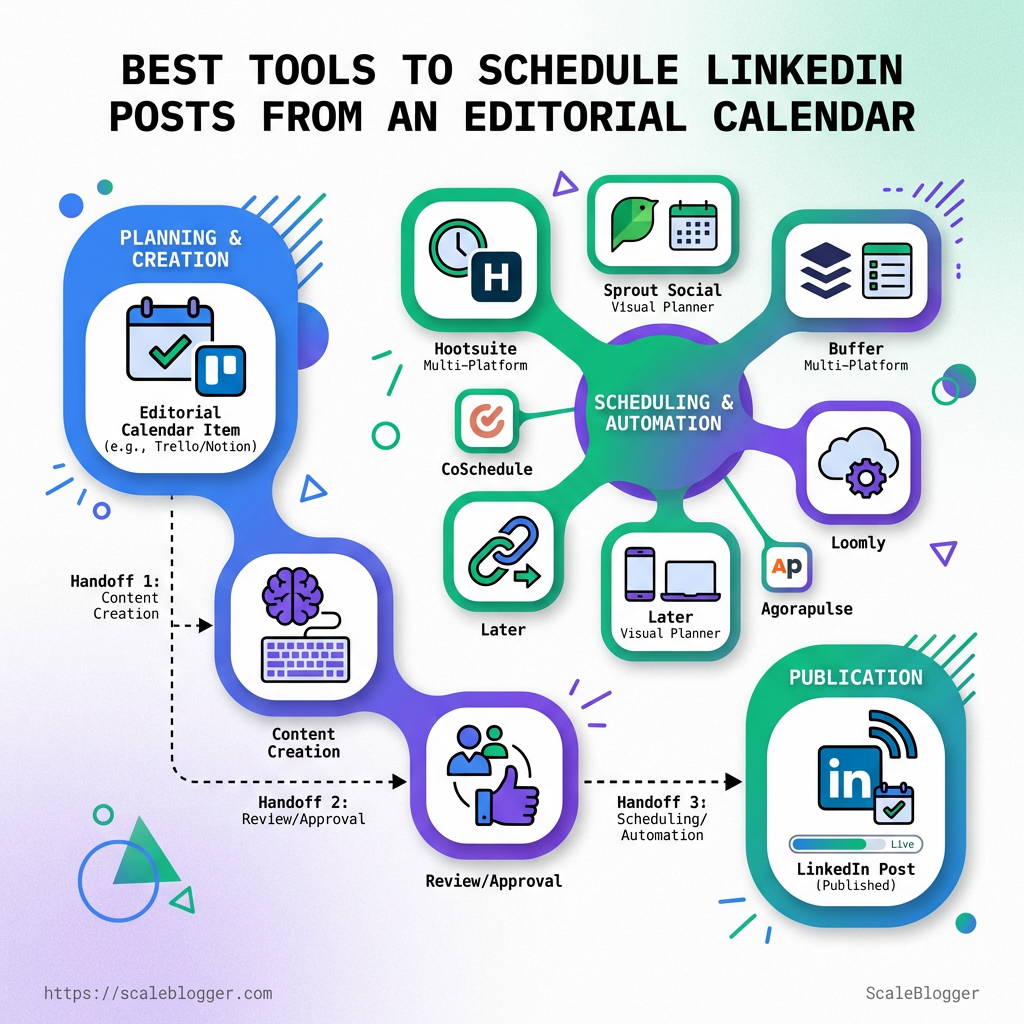
The diagram maps a typical path from an editorial-calendar item to a scheduled LinkedIn post.
It highlights three handoff spots: content creation, review/approval, and scheduling/automation.
Look for long queues or repeated manual steps—those are the places automation pays for itself.
If the bottlenecks live in scheduling, a small change can pay big dividends.
If approvals are the problem, add faster review gates or assign clear owners.
If content readiness is inconsistent, standardize brief formats and batch-create posts.
Here are quick tool picks for common scenarios—one line per scenario so you can decide fast.
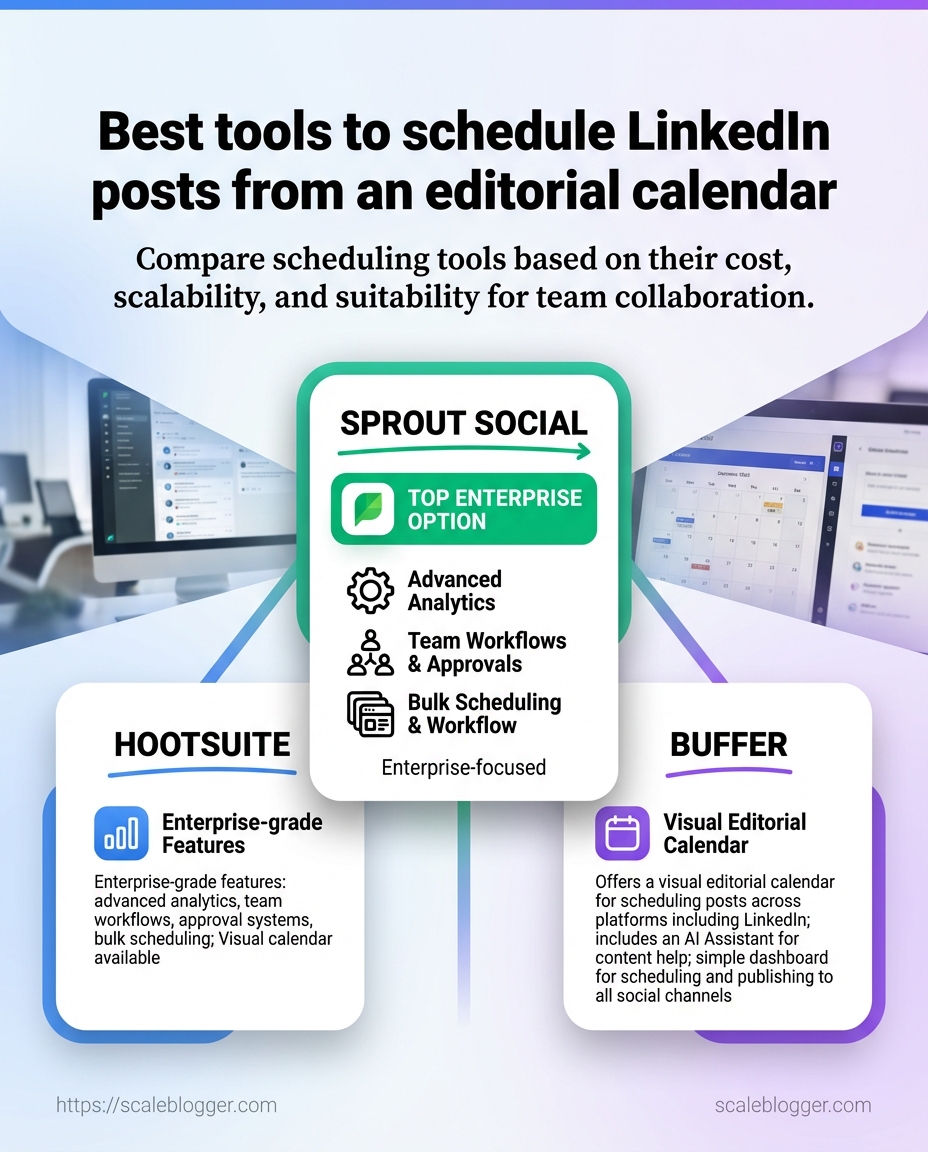
If you need team collaboration: Hootsuite — strong scheduling, analytics, and editorial-calendar integrations for multi-person workflows.
If you want simplicity and speed: Buffer — easy editor-to-post flow and a browser extension that gets posts out fast.
If you need deep analytics for engagement: Sprout Social — richer reporting and editorial calendar integration for performance-driven teams.
Run a three-step micro-diagnostic before switching tools:
Check if 50%+ of missed posts are approval delays; if yes, tighten review SLAs.
If scheduling is the blocker, trial one tool for two weeks and measure posting consistency.
If content volume is low, shift to batch creation and schedule one week in advance.
A small, focused fix—tool trial or a one-week batching habit—usually turns an empty LinkedIn feed into a steady presence.
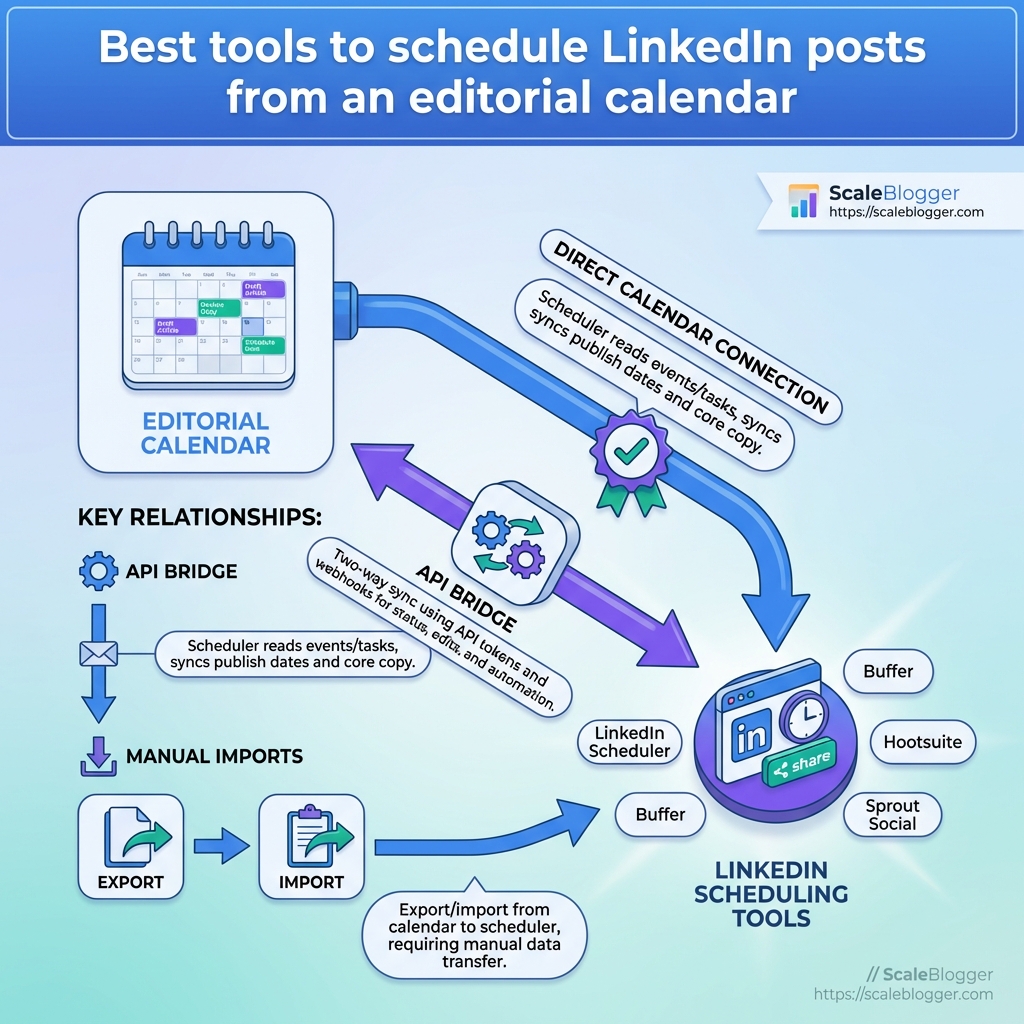
How scheduling tools integrate with an editorial calendar
Most calendar-to-scheduler connections fall into three predictable patterns: direct calendar links, API bridges, and manual imports.
Each pattern moves the calendar from planning to publish while carrying different levels of metadata and control.
Choosing the right pattern depends on team size, approval needs, and whether posts require platform-specific fields for LinkedIn.
Integration matters because it prevents handoff friction.
When a calendar exports post copy, images, campaign tags, publish windows, and approval status cleanly into a scheduler, teams post on time and keep context intact.
That is why 65% of social media managers reported using scheduling tools for LinkedIn in 2025 — they reduce manual work and missed slots.
Practical integrations vary: tools like Hootsuite, Buffer, and Sprout Social already provide direct calendar support or easy imports, so the effort is often in mapping your metadata, not writing code.
For teams that need deeper control, an API bridge or webhook adds automation for status changes and analytics backflows.
Integration patterns
Direct calendar connections let a scheduler read the editorial calendar natively.
This is common with Trello or Asana integrations where the post card maps to a scheduled item.
Direct calendar: Scheduler reads events/tasks and syncs publish dates and core copy.
API bridge: Two-way sync using API tokens and webhooks so status, edits, and analytics travel both directions.
Manual import: CSV or JSON exports; low-fidelity but useful for simple teams or one-off bulk uploads.
What content and metadata must flow
Editorial calendars must send more than the headline.
The scheduler needs the full context to publish correctly.
Copy and headline: Full post text, optional
alttext, and character-limit variants for LinkedIn.Visuals: Image/video file links, recommended aspect ratios, and attachments.
Campaign tags: UTM parameters, pillar/topic tags, and internal campaign IDs.
Publish windows: Exact datetime, timezone, recurrence rules, and preferred posting windows.
Approval status and owner: Draft/pending/approved and the responsible editor.
Platform flags:
companyPagevs personal profile, and visibility settings.
Common pitfalls when connecting to LinkedIn schedulers
Mapping mismatches are the most common issue: a calendar field called “topic” might not map to a campaign tag, leaving analytics fragmented.
Broken image links appear when only URLs are passed without attachments — always attach files or use CDN-hosted links.
Timezone drift causes late or early posts — enforce
UTCor explicit timezone fields.Approval loops fail if the scheduler doesn’t support a
pendingstatus — include anapprovedboolean in the payload.
Connect in ways that preserve context, not just dates.
A small mapping table up front saves a lot of missed posts and messy analytics.
Side-by-side comparison of the best tools
Navigating the landscape of tools for scheduling content on LinkedIn can feel overwhelming with numerous options available.
Each tool offers unique features that cater to different needs—whether you’re looking for robust analytics, easy editorial calendar integrations, or AI-driven content suggestions.
For social media managers, especially those dedicated to LinkedIn, understanding these distinctions is crucial for seamless content deployment.
As we move into a detailed comparison, it’s essential to recognize how these tools not only enhance productivity but also improve engagement.
Recent findings indicate that a staggering 65% of social media managers utilize scheduling tools to streamline their workflow and enhance content reach. With this in mind, let’s dive into the specifics of several top contenders.
Feature and capability comparison for top LinkedIn schedulers
Tool Name | LinkedIn Native Posting (API/Approved) | Editorial Calendar Integration (Direct/CSV/API) | AI Features (Copy Suggestion/Hashtag/Recycle Rules) | Team Workflow (Approvals/Roles) | Media Handling (Images/Video/Carousel) | Reporting & Benchmarking | Typical Price Tier |
|---|---|---|---|---|---|---|---|
Yes | Direct, API | Copy suggestions, hashtag recommendations | Approvals, roles | Images, video, carousel | Performance analytics | $19 – $599/month | |
Yes | Direct, CSV | Hashtag suggestions, recycle rules | Simple queue | Images, video | Basic analytics | $15 – $99/month | |
Yes | Direct, API | Copy suggestions, hashtag tracking | Approvals, roles | Images, video, carousel | In-depth analytics | $99 – $249/month | |
Yes | Direct, CSV | Hashtag suggestions, recycled posts | Content calendar sharing | Images, video | Basic analytics | $26 – $149/month | |
Yes | Direct, API | Copy suggestions, hashtag recommendations | Approvals | Images, video | Insight reports | $16 – $30/month | |
Yes | Direct, API | Hashtag suggestions, AI copywriting | Approvals, roles | Images, video | Performance analytics | $25 – $200/month | |
Native LinkedIn | Yes | None | Basic suggestions | None | Images only | Basic engagement metrics | Free |
The comparison table showcases some of the most effective tools for managing LinkedIn content.
Each tool has its strengths; for instance, Hootsuite and Sprout Social excel in analytics and team collaboration features, making them favorable for larger teams needing extensive insights.
Flexibility in pricing also stands out, where solutions like Buffer and ContentCal offer competitive rates for smaller businesses or individual users.
As you assess which tool best fits your workflow, consider aspects like the level of media handling you require and whether you need robust reporting features.
When choosing a scheduling tool, let the specific features that cater to your workflow guide your decision.
Whether it’s media versatility, AI integration, or collaborative processes, the right platform can significantly enhance your content strategy on LinkedIn.
Tool-specific FAQs and setup notes
Most problems with schedulers come down to two things: permissions and field mappings.
Get those clean at the start and the rest becomes predictable.
This section walks through the exact checks and mappings to run before granting LinkedIn access, plus pragmatic notes on AI-assisted drafting, approval flows, and handling LinkedIn-native media.
Expect concrete steps you can follow during a setup call or handoff.
Treat this as a checklist you can copy into an onboarding doc for any scheduling tool, whether it’s Hootsuite, Buffer, or Sprout Social.
What to check before granting LinkedIn access
Check whether the account needs to post as a personal profile or a company page before connecting anything.
Profile vs Page: Personal posts require profile-level permissions; pages need page admin rights.
Admin: Confirm the user has Page Admin or Super Admin status on the LinkedIn Page.
Scope: Verify the scheduling tool only requests w_member_social and page publishing scopes — deny any unrelated scopes.
Mapping editorial calendar fields to scheduler fields
Map fields so nothing gets lost in translation.
Typical mappings below match most CMS-to-scheduler flows.
Title →
Post titleor campaign labelBody →
Post body/ main text fieldCTA →
First commentorCTA buttonif supportedCampaign tag →
CampaignorTagmetadata
Best practice: keep a
Campaignfield in the calendar that maps to the scheduler’s tag so analytics join cleanly.
How AI features can assist drafting and scheduling
AI can accelerate drafts, suggest tone adjustments, and surface headline variations while preserving calendar metadata.
About 65% of social media managers reported using scheduling tools for LinkedIn in 2025, which makes AI-assisted drafting a common setup ask.
AI suggestion: generate 3 headline options and 2 first-comment CTAs for each calendar item.
AI guardrails: freeze campaign tags and publish dates from the calendar to avoid accidental edits.
This clip shows importing a calendar item, applying AI copy edits, and scheduling a LinkedIn post in under four minutes.
Approval workflows: roles and reducing friction
Define three roles: Creator, Reviewer, Publisher.
Limit Publisher permissions to the smallest necessary scope.
Creator: drafts and assigns campaign tag.
Reviewer: edits copy and approves media.
Publisher: final sign-off and scheduling.
Use automated reminders and one-click approvals in the scheduler to remove email chains.
Handling media and native LinkedIn formats
LinkedIn supports documents, carousels, and native video — each needs its own prep step.
Document: Upload PDF, add searchable title, and confirm first page preview.
Carousel: Export slides as high-quality PNGs, keep file sizes under 5MB per image.
Native video: Upload MP4 H.264, check aspect ratio (1:1 or 16:9), and add subtitles as a separate SRT file if possible.
Performance measurement and governance
How do you prove that scheduled LinkedIn posts are working? Start by choosing a tight set of metrics that map directly to the goals in your editorial calendar: audience growth, conversation, and lead actions.
Measure those consistently before and after you flip on automated scheduling so you can detect real change instead of noise.
Good measurement depends on clean inputs: consistent tagging, UTM parameters on links, and a single place where scheduled times, approvals, and campaign metadata live.
Many teams already use analytics inside tools like Hootsuite, Buffer, or Sprout Social for this; the difference comes from how disciplined the governance is around tagging and approvals.
A 2025 industry survey found 65% of social media managers use scheduling tools for LinkedIn to streamline distribution and boost engagement (2025).
Track metrics at cadence (weekly for reach and engagement; monthly for conversion) and make sure every scheduled post carries the same analytics wiring.
Which metrics to track
Start with three buckets: engagement, reach, and conversion.
Each bucket contains metrics you can action and compare before/after automation.
Engagement rate: likes + comments + shares divided by impressions; tells how sticky the content is.
Impressions / Reach: unique viewers and total views; shows content distribution size.
Click-through rate (CTR): clicks divided by impressions on link posts; measures interest.
Leads / Conversions: form fills, signups, or pipeline-sourced contacts tied to the post.
Quality signals: comment sentiment and saved/bookmarked counts for long-term relevance.
- Engagement: measures audience interaction and relative content quality.
- Reach: raw and unique viewer counts that indicate distribution health.
- Conversion: downstream, measurable actions tied to business goals (UTM-backed).
Benchmarking: set a baseline and measure improvement
Benchmarking starts with a pre-automation window.
Pick a representative period (minimum 6–8 weeks) that reflects normal posting cadence and promotional activity.
Collect baseline metrics for each KPI over that period and store them in a single dashboard or sheet.
Normalize for seasonality and campaign spikes by excluding atypical posts.
After enabling scheduling, run the same measurement window (6–8 weeks) and compare median and mean values.
Use percentage change and confidence intervals to judge significance; don’t chase single-post outliers.
If AI or auto-drafting is part of the pipeline, link content versions to performance so you can compare human-drafted versus AI-drafted posts (tools such as Scaleblogger can automate that metadata).
Governance checklist for scheduled LinkedIn content
Pre-publish governance checklist
Check item | Who is responsible | Why it matters | Pass/fail criteria |
|---|---|---|---|
Post copy proofread | Content writer & editor | Prevents typos and brand mistakes | No spelling/grammar errors; tone matches style guide |
Image / media checked for specs | Designer | Ensures correct display and aspect ratio | Correct dimensions, file size under platform limits |
Hashtags and tags verified | Social manager | Maximizes discoverability and correct mentions | Relevant hashtags ≤6; tagged profiles confirmed |
Campaign tag applied | Campaign owner | Enables campaign-level reporting | Campaign tag present in post metadata |
Post time aligned with calendar slot | Scheduler | Keeps cadence and avoids conflicts | Time slot matches calendar entry |
Approval recorded in workflow | Approver/Manager | Audit trail and accountability | Approval stamp or comment in workflow |
Links and UTM parameters checked | Analytics owner | Tracks source and campaign conversions | UTM present and working (test click) |
Accessibility alt text written | Content writer | Improves accessibility and reach | Alt text present and descriptive |
Legal / compliance review (if required) | Legal/compliance | Avoids regulatory issues | Sign-off recorded or N/A flagged |
Social manager | Prevents format errors across channels | Channel-specific copy adjustments confirmed | |
Analytics/tracking tags present | Analytics owner | Captures conversions and events | Tracking fires on test; data visible in analytics |
This checklist turns governance into a repeatable gate.
Use it as part of the scheduler workflow so nothing posts without the required metadata and approvals.
Good governance plus clear baselines gives you the ability to prove value and iterate on scheduling rules with confidence.
Measure cleanly, then let the data guide cadence and creative changes.
📥 Download: Download Template (PDF)
Cost, scalability, and team fit
Cost often decides which scheduler a team actually uses, long before feature lists are read.
Subscription tiers, seat pricing, and hidden API or publishing fees compound quickly as a team grows.
A small freelancer can afford a per-user plan; a 15-person content team will hit budget friction points fast.
Scale decisions should be driven by three things: how many accounts you publish to, how many approvers or editors need seats, and how much automation you expect to run.
When any one of those grows, total cost often jumps nonlinearly because many vendors price per seat, per profile, or gate integrations behind higher tiers.
Team fit matters as much as price.
Engineering-led teams care about API access and webhooks.
Centralized editorial teams care about approval workflows and version history.
Match the tool’s strengths to the team’s day-to-day, not to a features checklist that looks good on paper.
Subscription structure: Evaluate per-seat vs flat-fee plans and add-on rates for extra social profiles.
Overage triggers: Check what counts as an extra charge (posts, profiles, video uploads).
Integration costs: Factor in paid connectors to editorial tools like Asana or Trello.
Automation limits: Note monthly automation or API call caps that can create throttles.
Support & SLA: Paid support tiers matter once uptime or publishing delays impact campaigns.
Start with a single-tool workflow when you have under five active accounts and fewer than three approvers.
Consider an integrated calendar + automation stack once you publish across platforms, repurpose content automatically, or need programmatic scheduling.
Move to enterprise tiers when you require SSO, guaranteed SLAs, or deep API access for custom pipelines.
Vendor selection criteria checklist for technical content teams
Feature | Non-negotiable (Y/N) | Why it matters | Example tools that offer it |
|---|---|---|---|
Direct LinkedIn API posting | Y | Avoids browser-based workarounds and reduces posting failures | Hootsuite, Sprout Social |
Calendar import/export (iCal/CSV/API) | Y | Keeps editorial systems and schedulers in sync | Buffer, Hootsuite, Sprout Social |
Role-based approvals | Y | Enforces review workflows and audit trails | Sprout Social, Hootsuite |
Draft versioning | Y | Lets editors roll back or compare iterations | Sprout Social, Hootsuite |
Automated posting windows | N | Helps hit optimal engagement times without manual scheduling | Buffer, Hootsuite |
Performance reporting with benchmarking | Y | Measures impact and compares against industry baselines | Sprout Social, Hootsuite |
Multi-account management | Y | Reduces overhead for teams running many client or brand pages | Hootsuite, Sprout Social |
API access & webhooks | Y | Enables custom automation and integrations for engineering teams | Buffer, Hootsuite |
Content repurposing / auto-generated assets | N | Speeds social asset creation from long-form content | ScaleBlogger, Buffer |
Security & SSO | Y | Required for enterprise compliance and secure onboarding | Sprout Social, Hootsuite |
Localization / multi-language support | N | Important for global teams publishing localized posts | Hootsuite, Sprout Social |
Vendor choice is rarely binary.
Balance must-have security and API features against optional workflow niceties that reduce manual work.
The practical reality: 65% of social media managers reported using scheduling tools to manage LinkedIn workflows in 2025, which means competition among vendors is strong and features keep moving.
Pick a tool that fits current needs and lets you add capabilities without a full rip-and-replace.
Match pricing to scale and team roles, not to feature FOMO.
Common troubleshooting and advanced tips
Scheduled posts often fail at the last yard because of small, avoidable mismatches: expired tokens, permission gaps, or media that LinkedIn’s API silently rejects.
Troubleshooting these reliably saves hours of manual reposting and keeps the editorial calendar honest.
This section walks through practical diagnostics for linked-account failures, shows reliable workarounds for LinkedIn API media and format limits, and lays out advanced scheduling tactics you can run as experiments.
Expect actionable checks you can run in 10–20 minutes and tactics you can A/B over a month.
There are also quick examples that map to real tools most teams already use, like Hootsuite, Buffer, and Sprout Social, so you can translate checks into whatever stack you run.
Why scheduled posts fail and how to diagnose linked-account issues
Start with the obvious checks first, then move to token and mapping problems that are easy to miss.
Ensure the scheduler reports the account as connected and the platform (e.g., LinkedIn) shows the app in the account’s authorized apps.
Check
access tokenexpiry: if posts fail right after a password change or admin update, a token refresh is the usual suspect.Verify account-level permissions: personal posts vs. company pages require different scopes.
If a company page post fails but a personal one works, re-check page admin roles.
Inspect field mappings:
scheduled_time,media_url, andcontent_bodymust match the scheduler’s required formats.Mismatched date-time formats are common.
Pull the scheduler’s error log and match timestamps with LinkedIn response codes.
An HTTP 401 is token-related; 403 is permissions; 415 or 422 often points to media/format issues.
Workarounds for media and format limitations in LinkedIn’s API
LinkedIn restricts file types, sizes, and post formats; the platform also favors certain upload flows for images and video.
Image conversion: Convert images to
JPEGat 72–96 DPI and under 5 MB to avoid silent rejections.Video preflight: Transcode videos to H.264 baseline profile and keep bitrate modest; then upload via
multipart/form-data.Fallback media: If direct media upload fails, host the file on a CDN and post a link with a strong preview image.
This reduces native engagement but ensures publish reliability.
UGC post constraints: Use
UGCPostonly when you need rich media; otherwise post plain text + link to reduce API surface.
Advanced scheduling tactics: batching, recycling, and timing experiments
Batching reduces context switching and permissions errors.
Recycling extends content life without extra writing.
Timing experiments find pockets of peak attention.
Batching windows: Batch-create a week’s posts in one session and schedule uploads in a single batch to the scheduler to reduce intermittent failures.
Recycling rules: Create a two-tier recycle list — evergreen posts get 60–90 day recirculation; topical posts excluded.
Automate a cooldown to avoid audience fatigue.
Timing experiments: Run 3-week A/B tests with three posting times per weekday, then compare reach and engagement.
Small samples scale: tools like Buffer and Sprout Social make this easy to measure.
65% of social media managers used scheduling tools for LinkedIn to streamline distribution and improve engagement (2025 survey).
These checks and tactics cut down failed publishes and give you repeatable ways to squeeze more value from scheduled content.
Keep a checklist for token, permissions, and media checks and run the timing experiments monthly to refine your cadence.
