

Have you ever thought about how a single security breach could wipe out months of hard work? It’s often not the content that fails blogs, but rather these pitfalls. Attack vectors evolve quickly, and content teams often treat security as an afterthought until recovery becomes urgent.
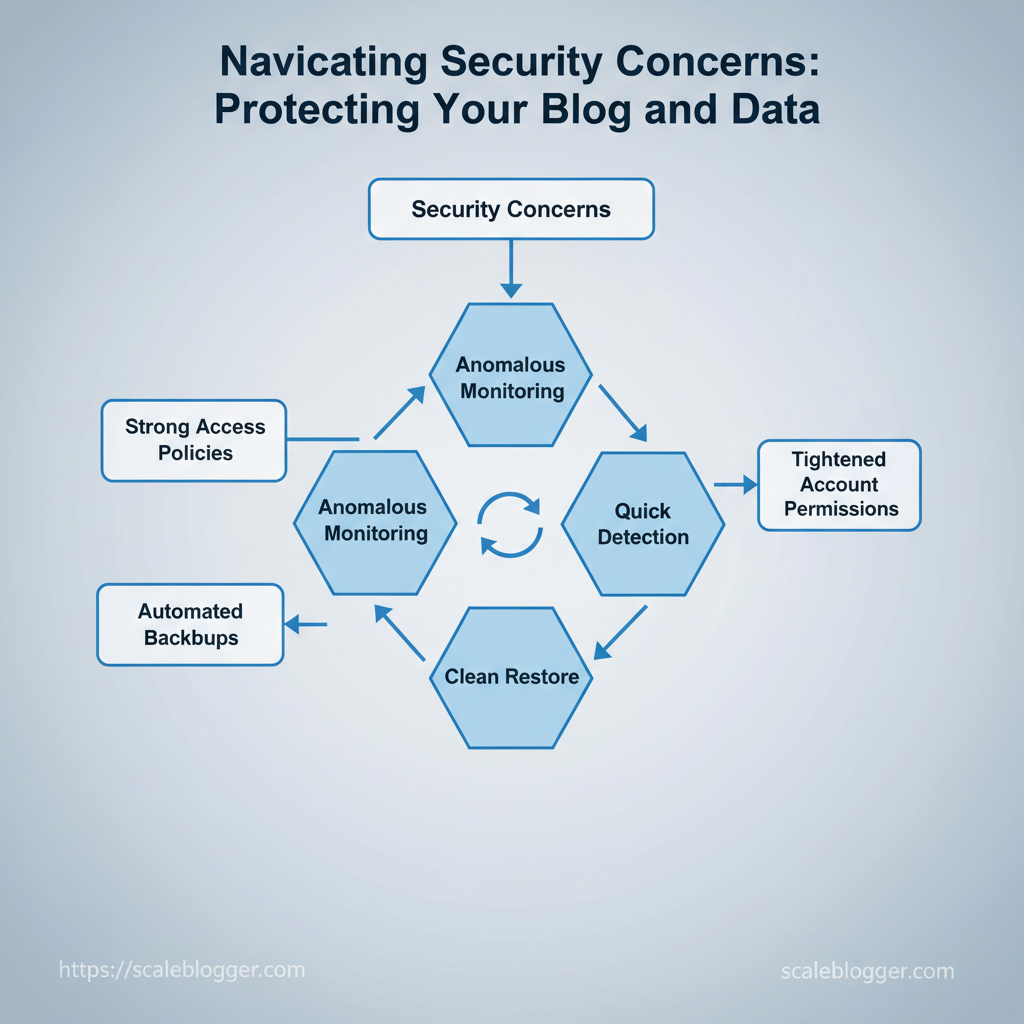
To protect a blog, you need effective controls. These controls reduce downtime, maintain brand trust, and keep SEO working. Start with simple, repeatable practices: enforce strong access policies, automate backups, and monitor for anomalous activity. These measures lower risk without blocking creative workflows.
Imagine a small editorial team that lost its search visibility because a hacked plugin added spam links. Quick detection, a clean restore from a recent backup, and tightened account permissions prevented permanent traffic loss. That same sequence scales to enterprise blogs and niche personal sites alike.
- How to design an automated backup cadence that minimizes content loss
- Practical access controls for multi-author blogs and agencies
- Simple monitoring steps to detect compromise early
- Recovery workflows that restore SEO and content integrity
Explore Scaleblogger’s tools and services to automate content workflows and integrate security and backup best practices.
Table of Contents
> Key Takeaway:
Assessing Your Current Security Posture
Before you start, make sure you have access to the site admin, hosting control panel, FTP/SFTP or SSH, and a recent backup. Tools/materials:…
Assessing Your Current Security Posture
Before you start, make sure you have access to the site admin, hosting control panel, FTP/SFTP or SSH, and a recent backup. Tools/materials: browser dev tools, wp-cli or CMS update dashboard, password manager, hosting control panel, simple spreadsheet for tracking. Estimated time: 45–90 minutes for a basic audit; 2–4 hours for deeper role and exposed-file checks.
Expected outcome: a clear list of quick fixes and a prioritized list of long-term changes needed.
- Begin with a quick inventory. Identify which CMS, theme, and plugins are active. Check who has admin access and if SSL and caching are set up correctly. That inventory reduces guesswork and makes prioritization objective.
- Follow this step-by-step quick audit:
- Check CMS core and plugins via the CMS dashboard or
wp-cli core version/drush status. Record versions. - Review user roles: list accounts with
Administratorprivileges, last login dates, and whether shared emails are used. - Validate SSL: load the site over
https://and check the padlock in browser dev tools for mixed-content warnings. - Search for publicly exposed debug/dev files (
.env,wp-config.php.bak,debug.log) using a simple sitemap or direct URL checks. - Note any out-of-date components and weak password practices.
Quick checklist: side-by-side items for immediate remediation
Side-by-side quick audit items, expected state, how to check, and immediate remediation steps
| Audit Item | Expected State | How to Check | Immediate Fix |
|---|---|---|---|
| CMS core version | Latest stable release | CMS dashboard or wp-cli core version |
Update core; apply hotfix patch |
| Plugin/theme versions | Current supported versions | Plugin/theme pages or composer.lock | Update plugins/themes; remove unused |
| Admin user accounts | Minimal admins, MFA enabled | User list; last login dates | Remove stale users; enforce MFA |
| SSL certificate status | Valid, no mixed content | Browser padlock; https:// load |
Renew cert; fix mixed resources |
| Publicly exposed debug files | Not publicly accessible | Try /.env, /wp-config.php.bak, /debug.log |
Remove files; restrict via .htaccess |
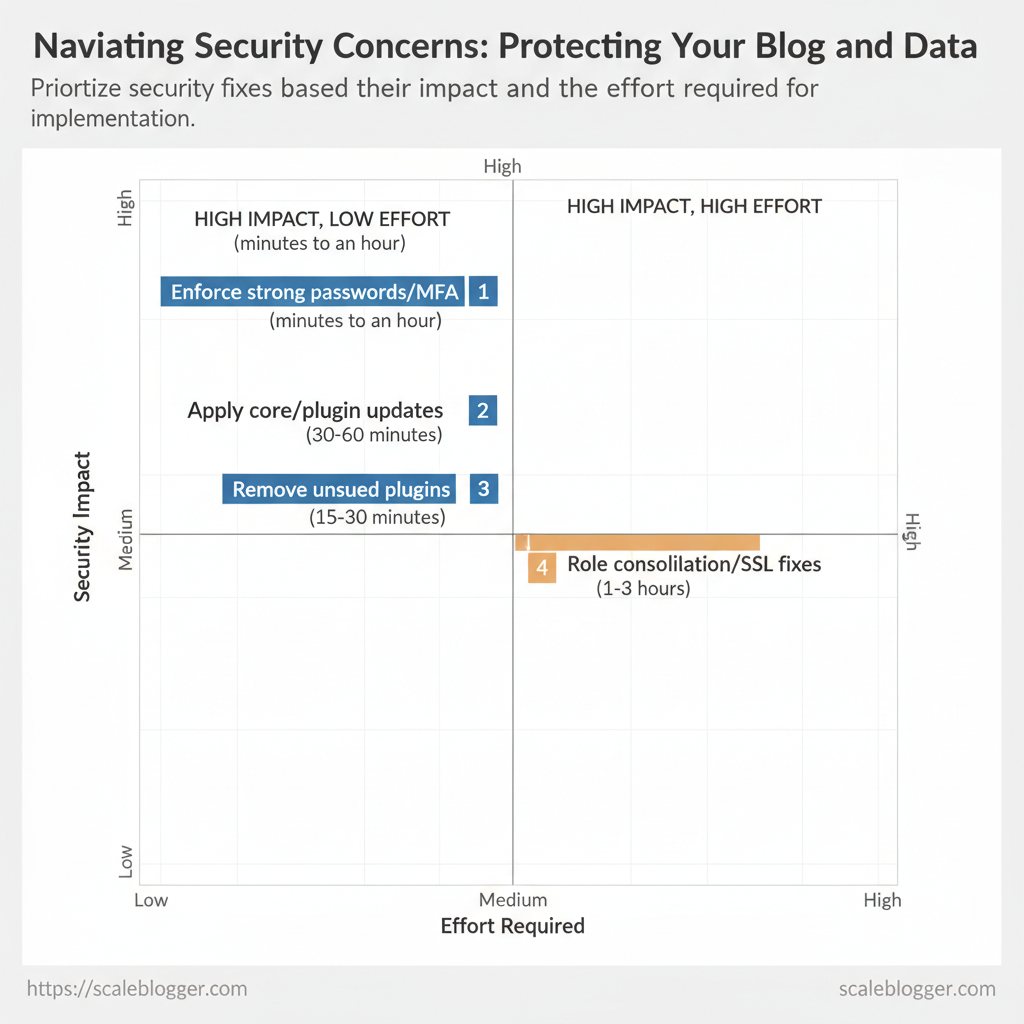
Prioritizing risks: use an impact vs. effort grid. , enforce strong passwords and MFA (minutes to an hour), apply core and plugin updates (30–60 minutes), and remove unused plugins (15–30 minutes).
Medium-impact items include role consolidation and SSL mixed-content fixes (1–3 hours). High-effort/high-impact work — architecture changes, penetration testing, or incident response — warrants professional engagement.
Troubleshooting tips: if an update breaks functionality, roll back using the backup and test updates on a staging environment. If admin accounts show unfamiliar logins, rotate keys, revoke sessions, and schedule a forensic review.
This approach surfaces the largest, most fixable problems fast and creates a defensible roadmap for deeper work. Implement these steps to reduce immediate risk while planning the heavier remediation that requires specialized support.
> Key Takeaway:
Securing Access and Authentication
Prerequisites
- Access to admin console for your CMS, identity provider (IdP), and any user directories. At least one organizational password manager…
Securing Access and Authentication
Prerequisites
- Access to admin console for your CMS, identity provider (IdP), and any user directories. At least one organizational password manager (recommended:
1Password,Bitwarden, orLastPass). MFA hardware or mobile authenticator apps for administrators.
- A simple role matrix (who needs what access) and an account inventory.
Tools and materials
- Password manager for teams
- Authenticator apps (
Authy,Google Authenticator) and/or hardware keys (YubiKey) - SSO provider options (Google Workspace, Okta, Azure AD)
- Audit log access and session configuration panel in the platform
- Strong passwords, MFA, and SSO options
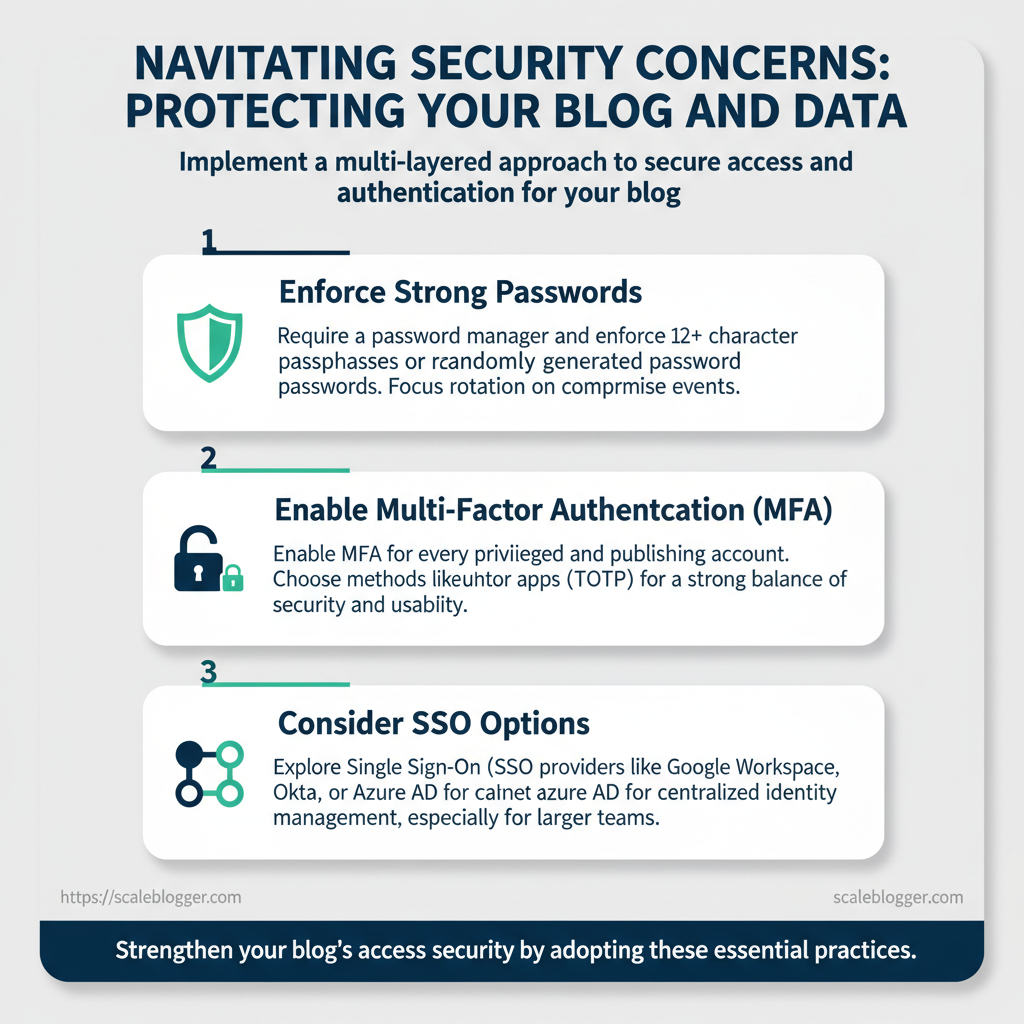
- First, require a password manager and enforce
12+character passphrases or randomly generated passwords. Password rotation should focus on compromise events, not arbitrary 30‑day changes. - Enable MFA for every privileged and publishing account. Choose methods deliberately:
- Authenticator apps (
TOTP) — strong balance of security and usability. - Hardware keys (
WebAuthn) — highest security, near‑phishing resistant. - SMS-based MFA — acceptable for low-risk accounts but vulnerable to SIM swap.
- Consider SSO for team scale: it centralizes authentication and simplifies onboarding. Use SSO when you need centralized access policies, but avoid relaxing MFA at the app level; enforce MFA through the IdP.
Practical MFA setup steps Configure backup codes and store them in the team password vault. 3. Test account recovery flows before rolling out.
Rotate service account credentials and use short-lived tokens where supported. Regularly audit API keys and delete unused tokens.
yaml
session_timeout: 30m # 30 minutes for admin consoles reauth_interval: 90d # require password re-entry for sensitive changes every 90 days
Warnings and tips: Relying solely on passwords or SMS-based MFA creates predictable failure modes. Backup codes must be treated like secrets and stored in the team vault. When SSO is enabled, maintain at least two SSO admins and a documented emergency access procedure.
MFA methods and SSO options by security level, usability, and setup complexity
| Method | Security Strength | Ease of Use | Best Use Case |
|---|---|---|---|
| Authenticator apps (TOTP) | High | Medium | Standard admin and editor accounts |
| Hardware keys (WebAuthn) | Very High | Medium-Low | Executive and critical admin accounts |
| SMS-based MFA | Low-Medium | High | Low-risk or recovery-only scenarios |
| SSO via Google/Okta | High (central control) | High | Organizations needing centralized identity |
| Backup codes / recovery | Medium (single-use) | Medium | Emergency account recovery and lost-device fallback |
Understanding and applying these controls reduces the attack surface and makes operational security predictable while keeping the team productive. Implement the changes incrementally, test recovery and incident flows, and keep the configuration documentation close at hand.
> Key Takeaway:
Protecting Content and Data (Backups & Encryption)
Prerequisites
- Access to hosting control panel or server SSH
- Admin access to CMS and any backup plugins
- A secure…
Protecting Content and Data (Backups & Encryption)
Prerequisites
- Access to hosting control panel or server SSH
- Admin access to CMS and any backup plugins
- A secure password manager and MFA for credentials
Tools / materials needed
- Cloud storage account (AWS/GCP/Azure/S3-compatible)
- Backup plugin or scheduler (
rsync,cron,UpdraftPlus/equivalent) - Encryption tools (
openssl,gpg), passphrase manager - Test environment or staging site for restores*
- Backup strategies — frequency, storage, and testing
- Frequency rules: Content sites: daily incremental + weekly full. High-change sites (ecommerce, membership): hourly database + daily files.
- Storage tiers: Keep local, nearline cloud, and cold archive copies. Use cloud snapshots for fast restores and cold storage (e.g., archive class) for long-term retention.
- Testing: Never assume backups are valid. Test restores monthly to a staging environment using a scripted checklist.
Step-by-step restore test (estimated time: 30–90 minutes)
- Create staging subdomain and DNS entry. 2.
Pull the latest backup archive to the staging server. 3. Restore files and import the database.
- Verify site functions: login, publish flow, payments (if applicable). 5.
Roll back and document issues.
Expected outcomes: a verified restore process, predictable RTO/RPO, and documented runbook.
- Encrypting data in transit and at rest
Let's Encrypt or managed certs). Use TLS 1.2+ and strong ciphers; renew certificates before expiry.
- Backups at rest: Encrypt archives with a strong passphrase and rotate keys every 6–12 months.
- Backups in transit: Transfer using
scp,rsyncoverssh, or HTTPS to object storage. - Handling PII: Minimize storing raw PII; where required, redact or store in a separate, encrypted vault.
Example encryption commands
bash Create encrypted tar.gz archive
tar -czf - /var/www/site | openssl enc -aes-256-cbc -salt -out site-backup.tgz.enc Decrypt
openssl enc -d -aes-256-cbc -in site-backup.tgz.enc | tar -xzf -> Industry analysis shows recovering quickly from a failure depends as much on tested procedures as on the backup itself.
Backup options by automation level, cost, restore speed, and ease of testing
Table: Section Content — Backup Option, Automation, Cost Range & more
| Backup Option | Automation | Cost Range | Restore Complexity |
|---|---|---|---|
| Host-managed backups | Daily automated | Often included in plan; $0–$20/mo for add-ons | Low — provider tools |
| Plugin-based backups (e.g., UpdraftPlus) | Scheduled via plugin | Free–$70/yr (premium) | Moderate — plugin UI |
| Manual exports (FTP + DB dump) | Manual or scripted | $0 (time cost) | High — manual steps |
| Cloud snapshots (AWS/GCP) | Automated via scheduler | Pay-per-GB ($0.02–$0.10/GB-month typical) | Low–Moderate — snapshot restore |
| Third-party backup services (CodeGuard, Backblaze B2 + tool) | Fully managed | $5–$50+/mo depending on plan | Low — vendor restore tools |
Troubleshooting tips
- If a restore fails, check DB version mismatch and file permissions first.
- If encrypted archives fail to decrypt, verify passphrase and key rotation logs.
- Monitor backup job logs and alert on failures within 15 minutes.
Understanding these practices reduces risk and simplifies recovery, letting content teams move faster without worrying about data loss.
Hardening Your Blog and Infrastructure
Prerequisites
- Access: SSH to server, SFTP, CMS admin, DNS provider, CDN/WAF console access.
- Tools:
ssh,rsync,curl, site-backup tool (snapshot or backup plugin), staging environment. - Time estimate: 2–6 hours for initial hardening; recurring 30–60 minutes weekly for updates and checks.
- CMS and plugin hardening (30–90 minutes; recurring)
- First, set an update cadence: core weekly checks, plugins/themes every 3–7 days; apply critical security patches immediately.
- Use a plugin vetting checklist before install:
- Popularity & reviews: >10k installs and recent positive feedback.
- Maintenance: Last update within 6 months.
- Security record: No public CVEs in past 12 months.
- Support responsiveness: Active support threads.
- Minimal permissions: Avoid plugins requiring
manage_optionsunless necessary.
- Remove unused themes/plugins; archive and delete from production. Inactive plugins remain an attack vector.
- Disable file editing in the CMS configuration to prevent an attacker from adding backdoors:
php
// In wp-config.php define('DISALLOW_FILE_EDIT', true); define('DISALLOW_FILE_MODS', true); // optional: blocks plugin/theme installs/updates via WP- Lock down uploads and executable permissions:
find wp-content/uploads -type f -exec chmod 644 {} \;and restrictwp-contentto the minimum required.
- Hosting, CDN, and firewall choices (60–180 minutes)
- Choose hosting with security features: managed hosts that include daily backups, isolated containers, malware scanning, and automatic WordPress updates reduce operational risk. Typical choices include managed WordPress, VPS with hardening, or cloud instances behind a CDN.
- a CDN for caching, TLS termination, and DDoS mitigation. Use caching headers, origin shields, and purge strategies that match publishing cadence.
- Implement a WAF and test changes safely: create a staging WAF policy, use a low-impact rule first (block reputation and known-bad IPs), then enable stricter rules (SQLi/XSS signatures) during low-traffic windows. Log in to verify false-positive hits and whitelist legitimate crawlers.
- Server-level firewalls (
iptables/ufw) should only allow required ports (typically22,80,443), with SSH rate-limiting and key-only auth. Use Fail2Ban for brute-force protection.
Hosting/CDN/WAF tradeoffs: ease of setup, cost, protection level, and common providers
Table: Section Content — Protection Layer, Ease of Setup, Typical Cost & more
| Protection Layer | Ease of Setup | Typical Cost | Primary Benefits |
|---|---|---|---|
| Managed hosting security | Easy (managed) | $20–$250+/mo | Backups, patching, malware scan |
| Third-party CDN (Cloudflare/Akamai) | Very easy | Free–$200+/mo | Caching, TLS, DDoS mitigation |
| WAF services (Cloudflare WAF, AWS WAF) | Moderate | $20–$1000+/mo | Layer7 protection, custom rules |
| Server-level firewalls (iptables/ufw) | Moderate | Free–$10/mo | Low-level packet filtering, port control |
| Edge security (Bot management) | Moderate | $50–$1000+/mo | Bad-bot mitigation, credential stuffing protection |
Understanding these principles helps teams lock down infrastructure while keeping publishing workflows fast and reliable. When configurations are automated and tested in staging, teams can scale without adding operational risk.
Monitoring, Detection, and Incident Response
Monitoring and detection act like the nerves of a content platform. Without them, breaches can go unnoticed, making recovery chaotic. Start by instrumenting layers that matter: uptime, performance, file integrity, malware scanning, and centralized logs. Alerts must be prioritized so engineering teams respond to real problems instead of chasing noise.
Monitoring Tools and Alerts — what to deploy and why
- Uptime & health checks: Ensure synthetic requests, DNS monitoring, and SSL checks run at multiple locations. Performance monitoring: Track RUM and APM metrics to spot degradations that precede incidents. File integrity & malware scanning: Detect unexpected file changes and signature/heuristic threats.
- Log aggregation: Centralize
syslog, web server, and application logs for correlation. Alert prioritization: Use severity, blast radius, and confidence to reduce false positives.
- Immediate containment steps
- Isolate affected hosts or services (remove from load balancer, revoke keys).
- Disable compromised user accounts and rotate service credentials.
- Apply temporary network controls (block IPs, tighten firewall rules).
- Preserve evidence by taking controlled snapshots and saving volatile memory if needed.
- Preserving logs and evidence
- Immediately copy logs to a write-once location; tag with timestamps and hashes.
- Export system images and
dmesg,journalctl, and application logs. - Record chain-of-custody: who accessed what, when, and why.
- Avoid modifying live artifacts; perform forensics on copies only.
- Communication and notification templates
Subject: Incident [INC-YYYYMMDD] — Containment in progress Brief description of affected systems and current impact. Actions taken: Isolation, credential rotations, log preservation. Next steps: Forensics, patching, user notification timeline. Owners: @eng-oncall, @security, @commsWe detected unauthorized access to [service/component]. We contained the activity on [date/time], reset affected credentials, and are notifying impacted accounts. No payment data was accessed.
Steps you should take: reset your password and enable 2FA.
Table: Section Content — Monitoring Type, Sample Tools, Cost & more
| Monitoring Type | Sample Tools | Cost | Primary Use Case |
|---|---|---|---|
| Uptime monitoring | UptimeRobot, Pingdom, StatusCake | UptimeRobot: Free/Pro ~$8/mo; Pingdom: from $10/mo | Synthetic checks, DNS/SSL alerts |
| Malware scanning | Sucuri, Wordfence, MalCare | Sucuri: from $199.99/year; Wordfence: Free/Premium $99/yr | Website malware removal, firewall |
| File integrity monitoring | Tripwire, OSSEC, Wordfence FIM | Tripwire: enterprise pricing; OSSEC: open-source (free) | Detect unexpected file changes |
| Log aggregation | Datadog, Splunk, ELK (Elastic) | Datadog: from $15/host/mo; ELK: open-source/free | Centralized logs, search, correlation |
| Performance monitoring | New Relic, AppDynamics, Dynatrace | New Relic: Free tier; paid usage plans | APM, transaction traces, RUM |
Understanding these practices ensures incidents are detected quickly, contained decisively, and communicated clearly—so teams can recover faster and maintain user trust. When implemented with discipline, monitoring and response stop minor problems from becoming major outages.
📥 Download: Blog Security Checklist Template (PDF)
Ongoing Maintenance, Compliance, and Best Practices
Maintenance and compliance are continuous activities, not one-off projects. Start by treating security, privacy, and documentation as a predictable rhythm: daily hygiene, weekly checks, monthly audits, quarterly exercises, and an annual deep-dive. That rhythm keeps risk visible and reduces firefighting.
Map and run a repeatable security calendar
- First, standardize a single calendar (shared
Google Calendarorteam calendar) with recurring events, owners, and estimated durations. 2.
Then, attach a short runbook to each event with steps, success cues, and a link to the relevant docs. 3. Finally, automate reminders and post-task logging so every task writes an audit trail.
Practical maintenance actions and expectations
- Daily: Monitor uptime and alerts, apply critical patches if needed, review high-priority security notices. Estimated time: short check (15–30 minutes). Success looks like zero new unresolved alerts.
- Weekly: Review backups, rotate keys that meet policy, scan codebase for new vulnerabilities. Estimated time: 1–2 hours. Success looks like verified backups and scanned results recorded.
- Monthly: Run dependency and license scans, review access logs, update content moderation filters. Estimated time: 2–4 hours. Success looks like mitigated findings and updated risk register.
- Quarterly: Perform a penetration test triage, update privacy impact assessments, refresh role-based access controls. Estimated time: 1–2 days. Success looks like remediated high/critical items.
- Annually: Full security assessment, legal compliance review (privacy policy, terms), tabletop incident response exercise. Estimated time: 3–5 days. Success looks like signed attestation and updated legal docs.
Map maintenance tasks to daily/weekly/monthly/quarterly/annual schedule with estimated time and owner
| Cadence | Tasks | Estimated Time | Owner/Role |
|---|---|---|---|
| Daily | Monitor alerts, check uptime, review critical logs | 15–30 minutes | Site Reliability Engineer / Ops |
| Weekly | Verify backups, rotate secrets, vulnerability scans | 1–2 hours | DevOps / Security Engineer |
| Monthly | Dependency/license scans, access log review, patching | 2–4 hours | Engineering Lead / Security |
| Quarterly | Pen-test triage, privacy impact updates, RBAC audit | 1–2 days | Security Manager / Legal Ops |
| Annually | Full security assessment, policy/legal review, tabletop drill | 3–5 days | CISO / General Counsel / Exec Sponsor |
Privacy, legal, and recordkeeping
- When a privacy policy is required: Public-facing data collection, newsletters, analytics, or third-party integrations trigger a published policy and disclosure.
- Handling subscriber data securely: Use encryption at rest and in transit (
TLS+ provider-managed KMS), minimize retained fields, store consent timestamps, and applyleast privilegeto access. - Recordkeeping best practices: Keep immutable logs for access and changes, store consent receipts for 3–7 years depending on jurisdiction, and tag documents with versioned metadata.
Documentation templates and quick examples markdown Title: Backup Verification Runbook Owner: DevOps Lead Steps:
- Verify last three backups succeeded. 2.
Perform restore test on staging. 3. Log results + screenshots.
Success: Restore completes within SLA.
Understanding these principles keeps operational risk low and compliance auditable. When implemented consistently, maintenance cycles reduce emergency work and free teams to focus on strategic content growth.
Conclusion
You protect months of work when content strategy, security, and backups work together as one system. The article showed why teams must treat access controls, automated backups, and content deployment pipelines as interconnected priorities; for example, editorial teams that added automated snapshots and role-based publishing recovered fully after CMS misconfigurations, and shops that integrated CI checks prevented credential leaks during deployments. Prioritize automated backups, enforce least-privilege access, and add continuous monitoring—these three moves reduce the most common catastrophic failures.
Next steps: implement incremental backups and test restores, lock down publishing credentials and rotate keys, and add automated checks into the content pipeline. If internal capacity is limited or you need a faster path to reliable automation, consider managed solutions. Explore Scaleblogger’s tools and services to automate content workflows and integrate security and backup best practices. These resources accelerate implementation and make recovery processes repeatable and auditable.
